

Organize a meeting
The organizer decides what the meeting is about, which call it carries, who can reach it, and how much room each person gets. Everything here is changeable up until the meeting goes live.
1. Create the event
From your organization page, choose New event. It is created as a draft: invisible to everyone but your organization's members.
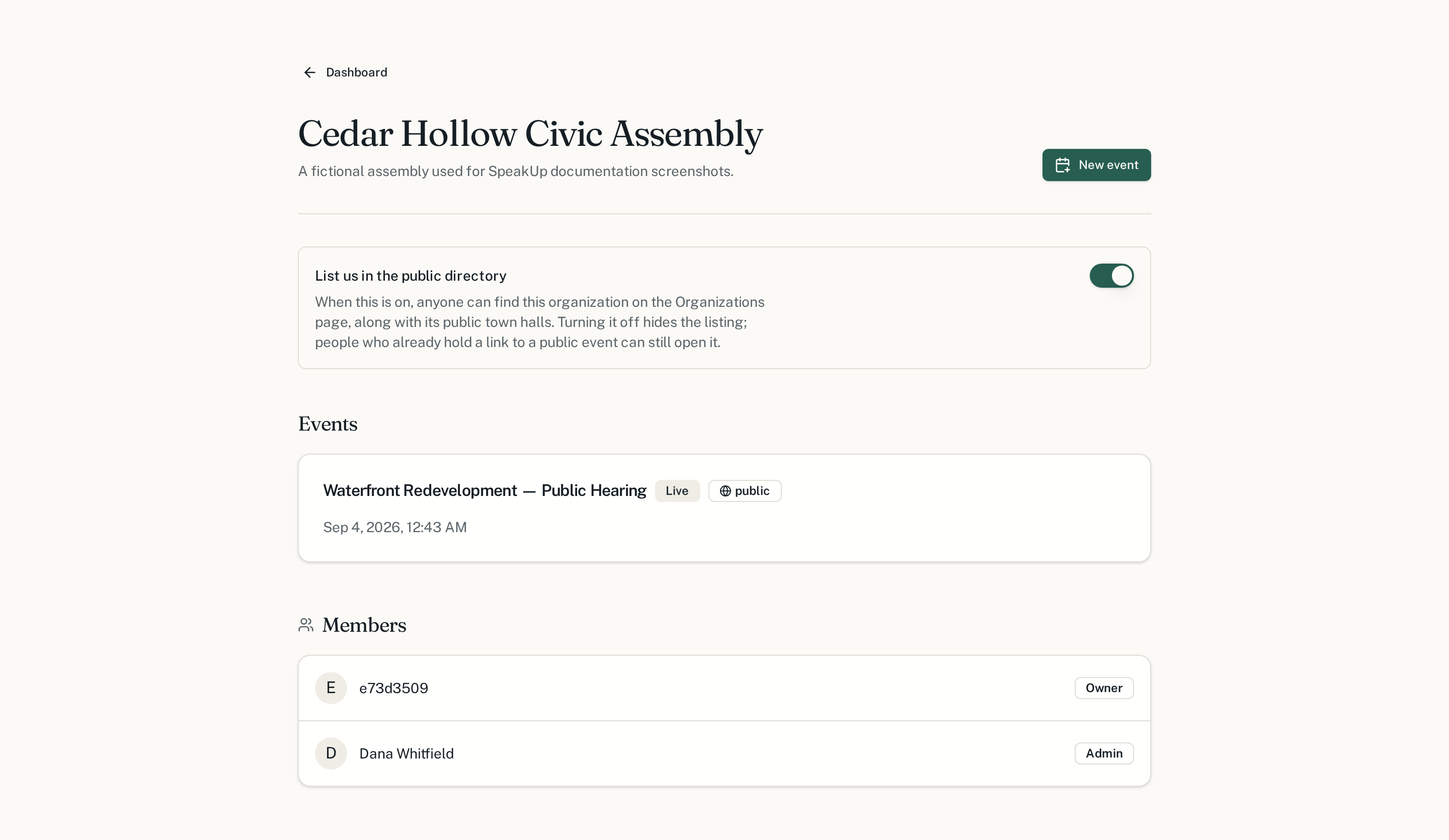
2. Set it up
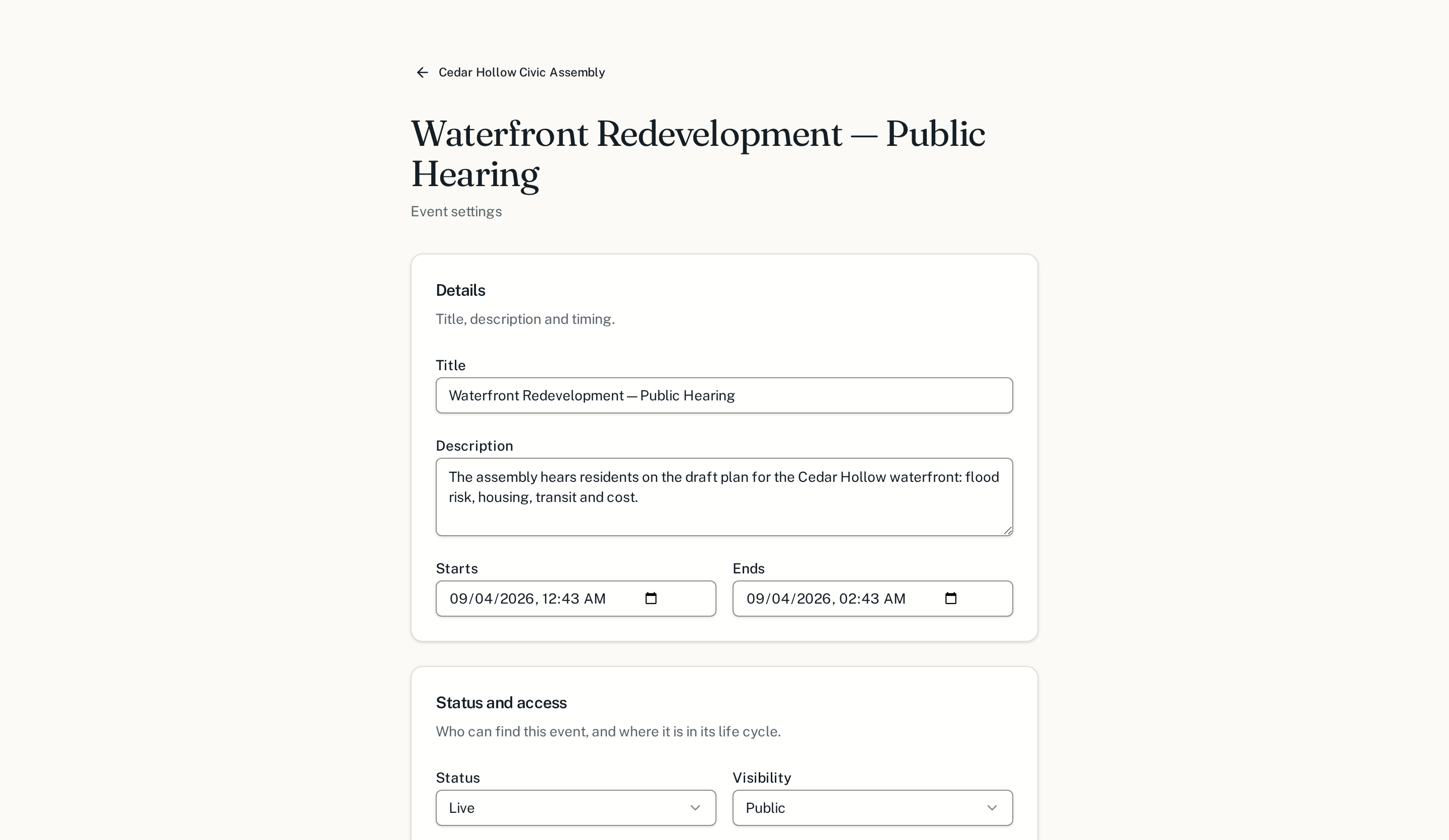
The settings page holds everything that shapes the meeting. Write the description as if a resident who has never attended will read it, because one will.
3. Invite people
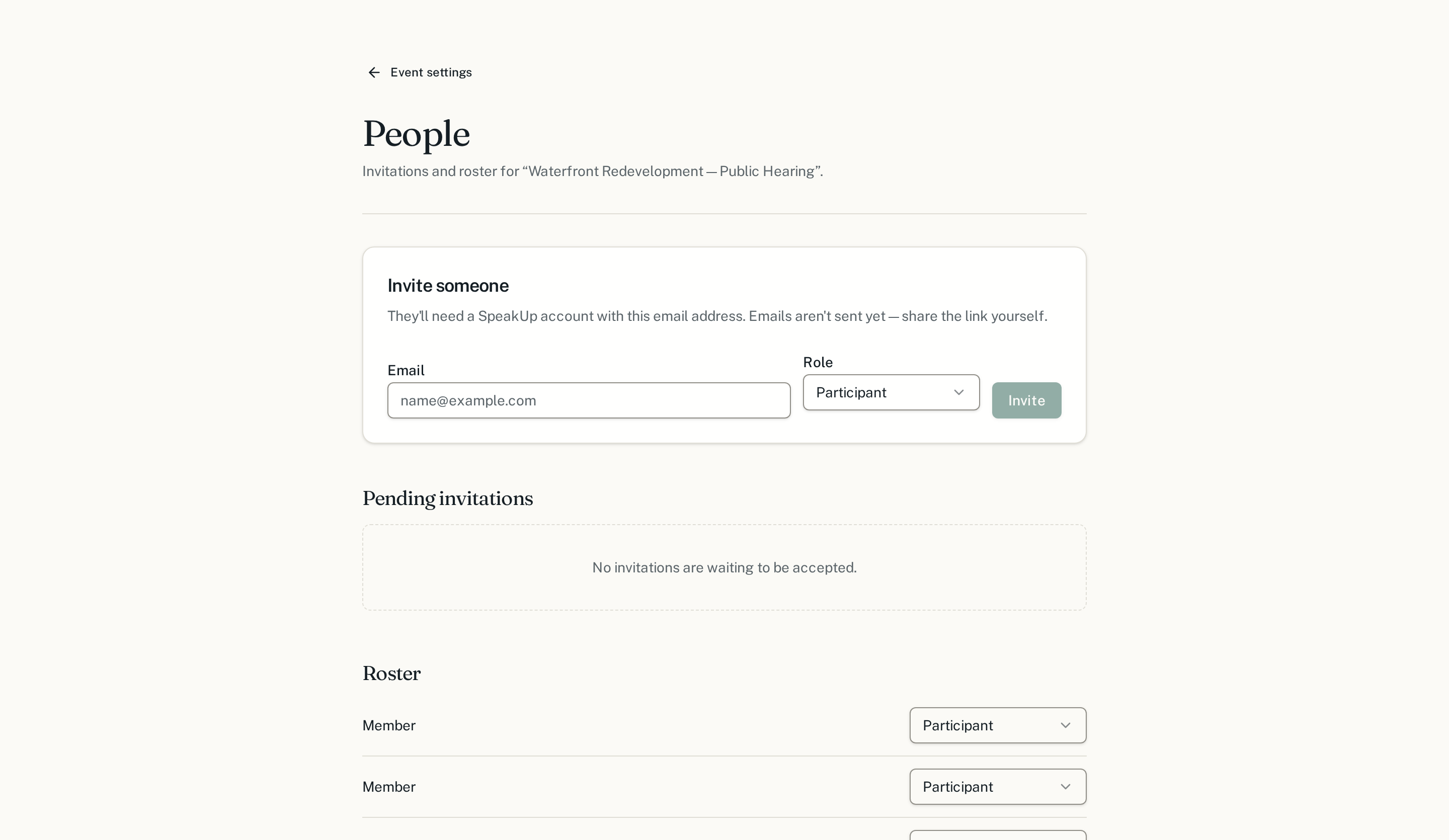
Moderators run the queue. Speakers are listed on the page so the room knows who is answering. Participants are everyone else.
4. Add the video
This is the step that makes the page a meeting rather than a form. On the same settings page, the Video card carries the call or stream you already run: Zoom, Google Meet, Microsoft Teams, YouTube Live, Jitsi, any embeddable page, or a plain link out. Choose the provider, paste the link, and check the preview before saving. Once it is set, the call fills the main column of the town hall, the questions and chat run down a column beside it, and the moderator's tools open on top of it.
Google Meet
Opens in a new tab, with the destination host named on the button.
Zoom
Opens in a new tab, with the destination host named on the button.
YouTube Live
Plays inside the hearing page, next to the questions.
Microsoft Teams
Opens in a new tab, with the destination host named on the button.
Jitsi
Plays inside the hearing page, next to the questions.
Embed any page
Plays inside the hearing page, next to the questions.
Link out to the stream
Opens in a new tab, with the destination host named on the button.
What this is, exactly. SpeakUp has no application registered with Zoom, Microsoft or Google. The organizer pastes the link they already have; SpeakUp checks it, strips any passcode out of what participants can see, and re-publishes it in the hearing. Nobody is signed into a meeting on your behalf, and no recording is made by SpeakUp.
If the link you paste contains a passcode, SpeakUp removes it from the address participants see and keeps it moderator-only. You can also add a recording link, shown once the town hall has ended, and one language track per interpretation feed.
A note on the allowance
Each participant gets a fixed number of questions for the meeting. It is the single most consequential setting on the page: a low allowance forces people to choose their best question and to back other people's rather than repeat them. Following up on someone else's question is always free.
Next
Once the town hall is live, someone has to run the queue.